In the data import, diverse files (XML, fixed text length, free text length) can be processed and imported. Settings for data import can be stored or downloaded. With the Data Import Manager, data from several data files can be inserted directly into the tables. Data files can include records as texts of fixed lengths (i.e. each record 200 characters long, the first 30 matchcodes before, the next 20 names, the next 50 addresses, etc.). Data files can have a data record per line and individual fields will be separated by specific symbols i.e. tab, semicolon, etc.
 Open file for data import
 Save settings
 Download saved settings
 Open macro editor
 Delete link
 Automatic assignment of the table field to data entries
 Create import preview
 Import data
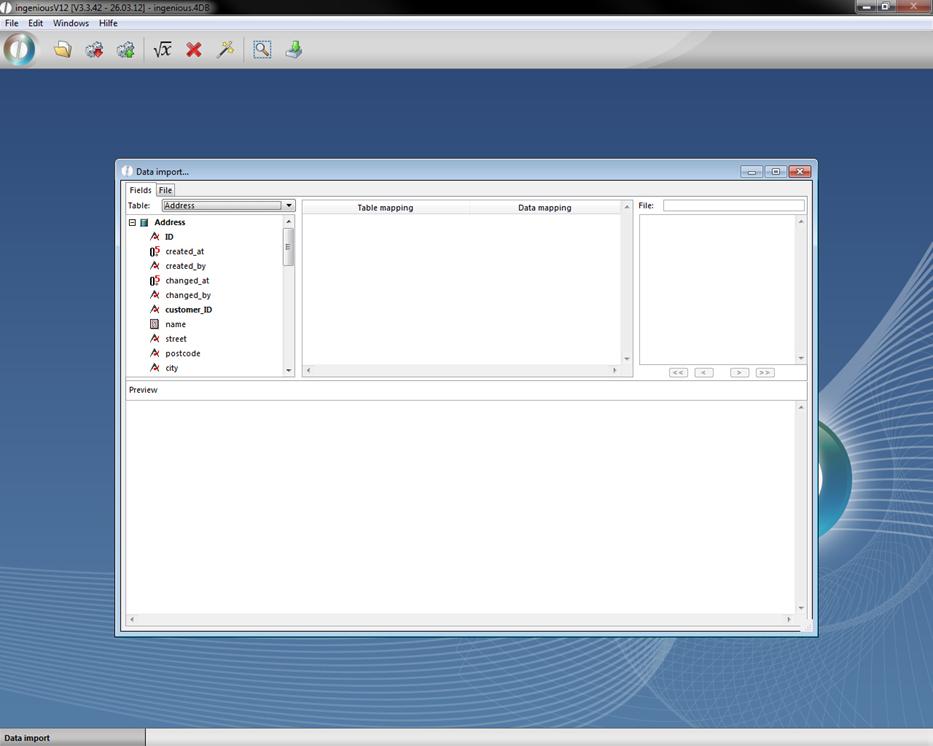
Assignment of the table fields will be done using Drag & Drop or automatically. Files can be viewed or forwarded with arrows or double arrows. In addition, error corrections of erroneous data, or of already existing records can be made with the “File” register card. In the section “Data files”, it can be determined what should happen if a data file already exists.
-
Only new data files will be entered, if an entry already exist and no modification can be made
-
Fields from the old data files are overwritten with the new ones. If there is no entry for a field, then this does not change
-
The old data file is deleted and replaced with a new one
In the section “Corrupt file”, one can show what should happen when there is an error (incorrect macro, duplicate matchcode, etc.):
In the section “Corrupt file”
-
an error message regarding the type and place of the error and cancellation of the import
-
whenever an error appears, give an error message, import and continue
-
do not give an error message and continue the import
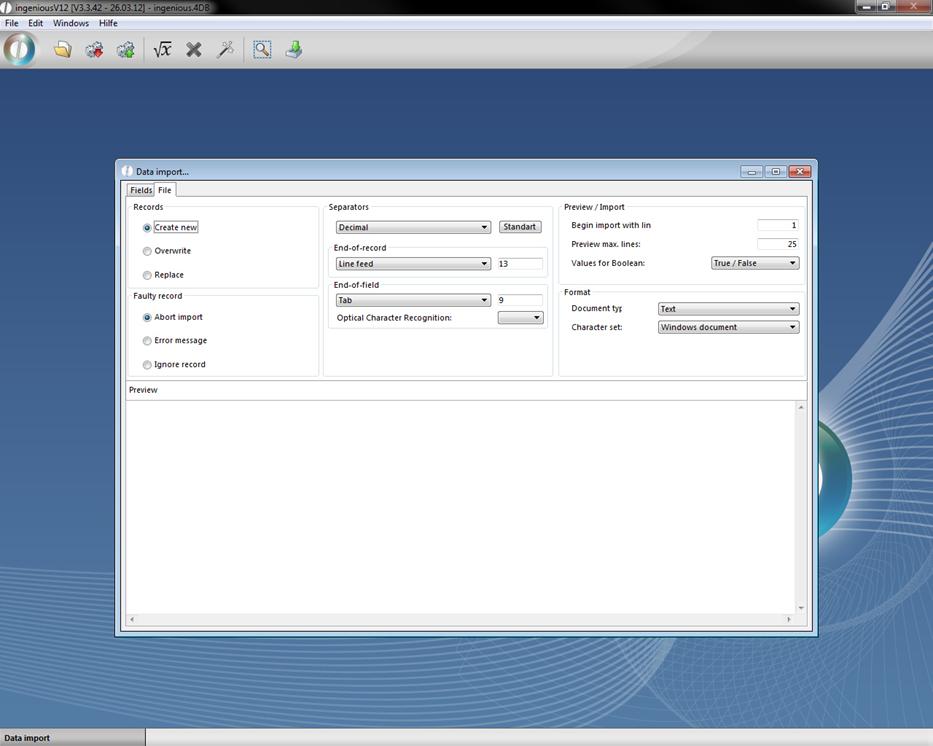
In the segment “Separators”, the sentence length and separator can be set. In the segment “Format”, settings for the file type and font can be made (important for showing ü, ö, ä, ß). Other settings are possible in the segment “Preview / import”. If one more table header is saved in a file for instance, a 2 must be set in “Imports from the line”. If one has to import many records, one can show how big the preview should be with “Preview max. lines”.
The file records can be edited by means of a macro editor before the import. For example, the zip code can be filtered out from an address line or the order articles / sales articles are placed as “true”. The macros can be stored separately as a file and be loaded.
Practice with data import
-
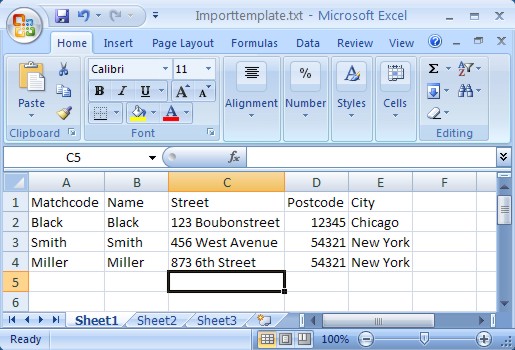
Apply an Excel file with the following values and save this as a text file on your desktop under the name "Importtemplate”.
-
Now open the data import and pull the table of contents with Drag & Drop, as illustrated, in the table allocation area. Then click on the button and choose the provided import template.
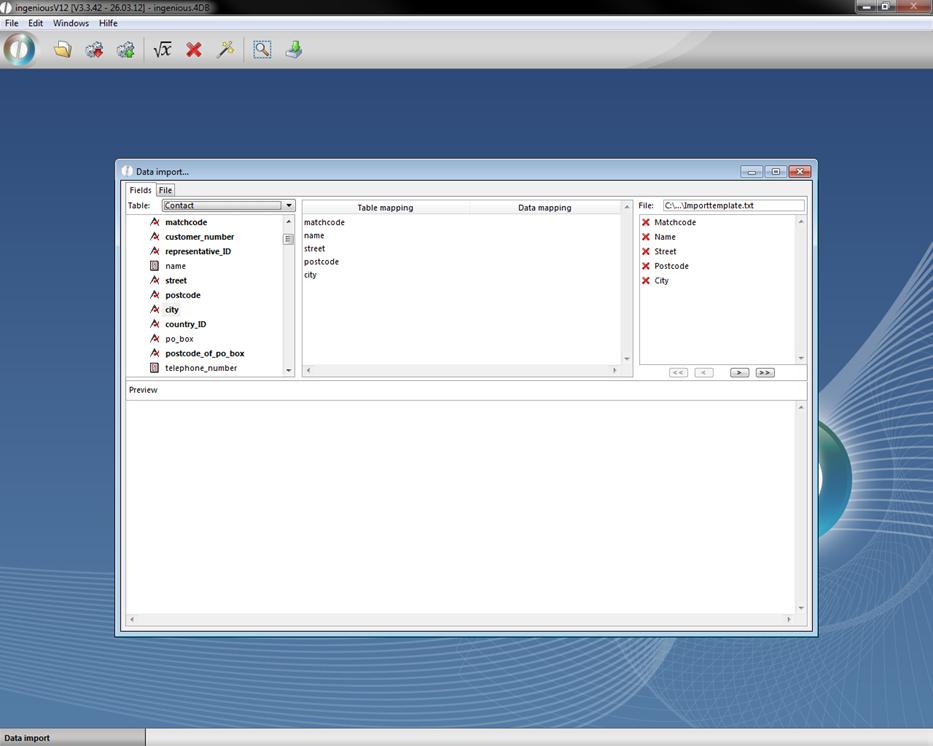
Using Drag & Drop, pull the file data in the corresponding order in the area “Data mapping”, or click on the button for the automatic allocation of the data.
With the help of the macroeditor you can enter different macros for different types of calculations
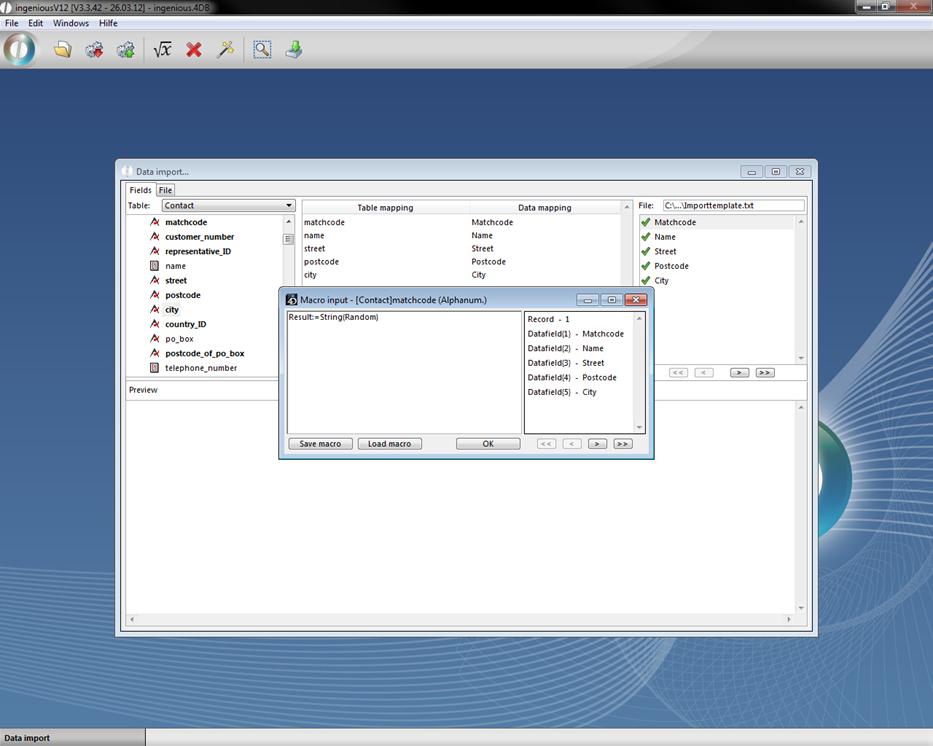
Example: Random assignment of the customer identification number
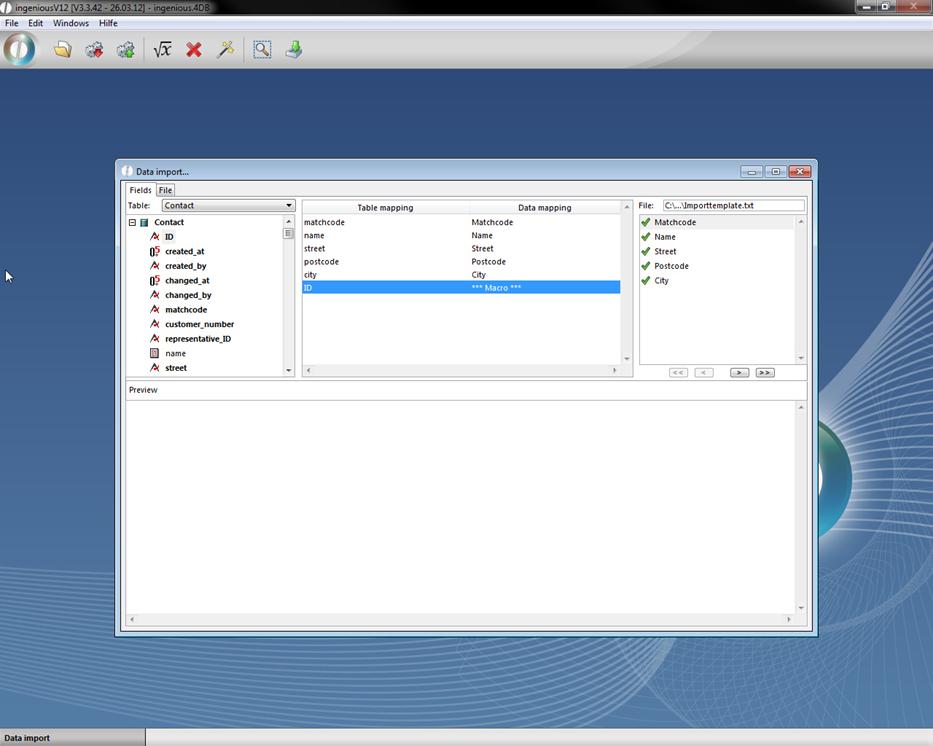
Now put the following settings in the “File” area and begin the import by clicking on the icon.
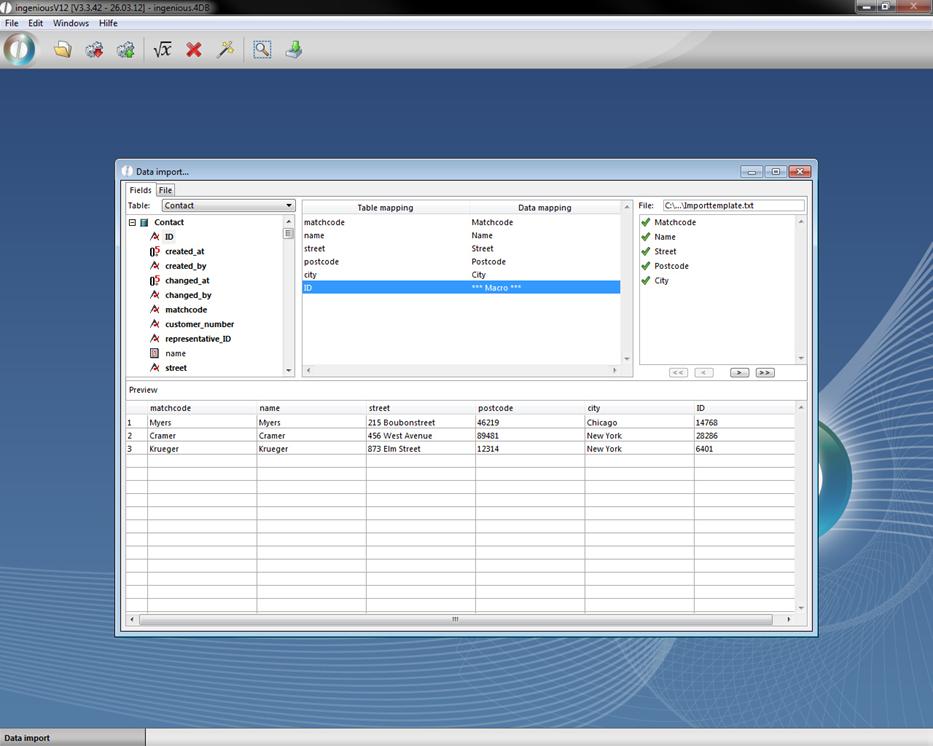
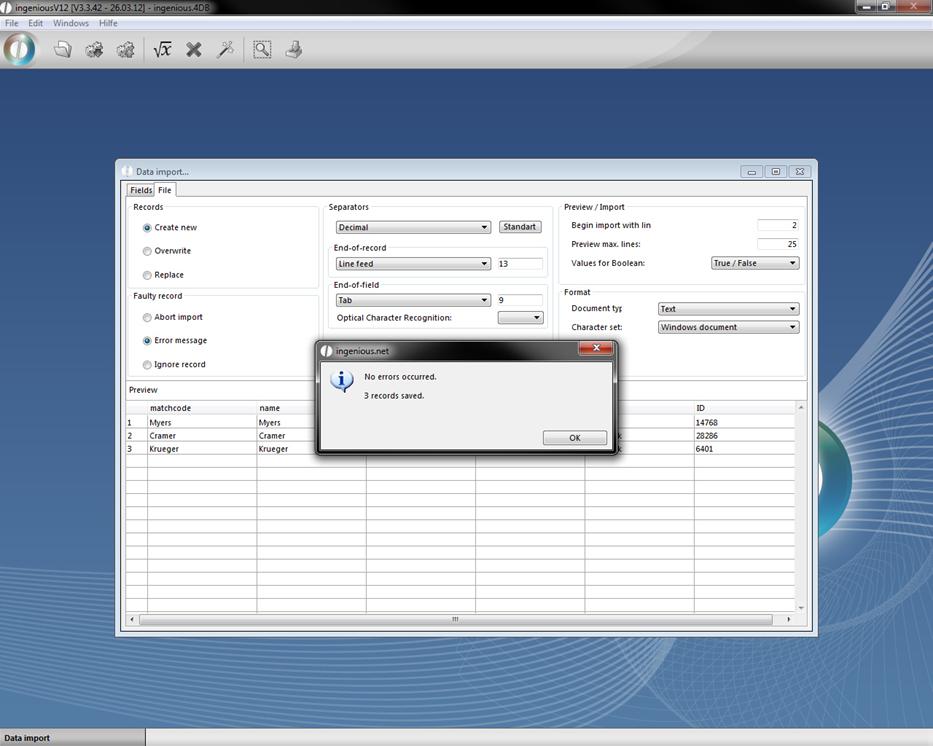
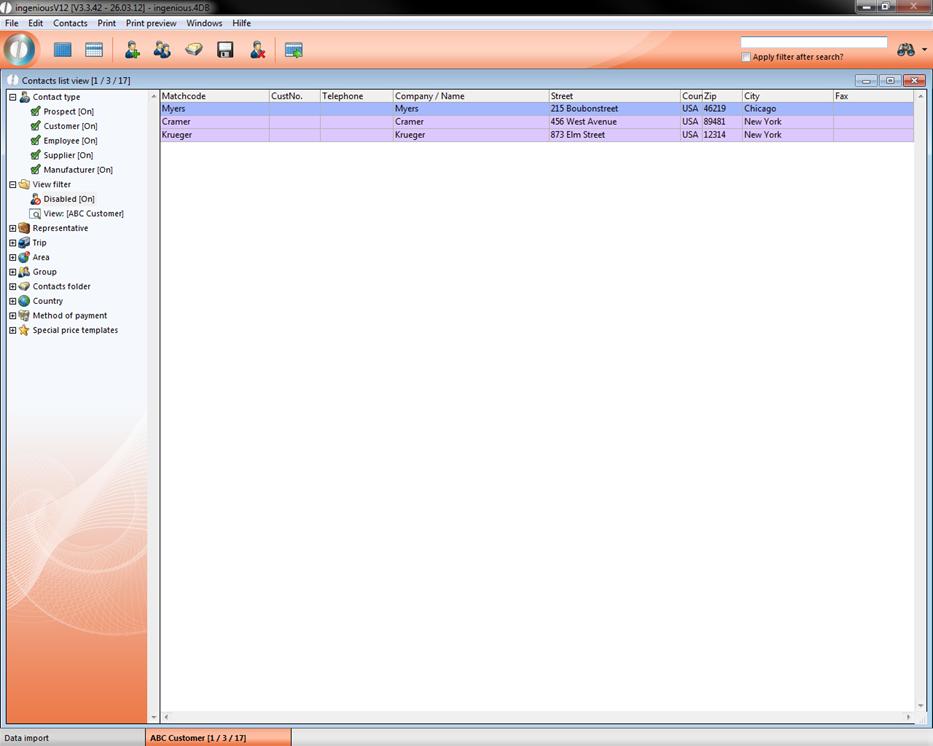
If the export was successful, you will see the newly added contacts in the contact list view.
Practice for text recognition
1. With the help of the windows editor create the following file and save it
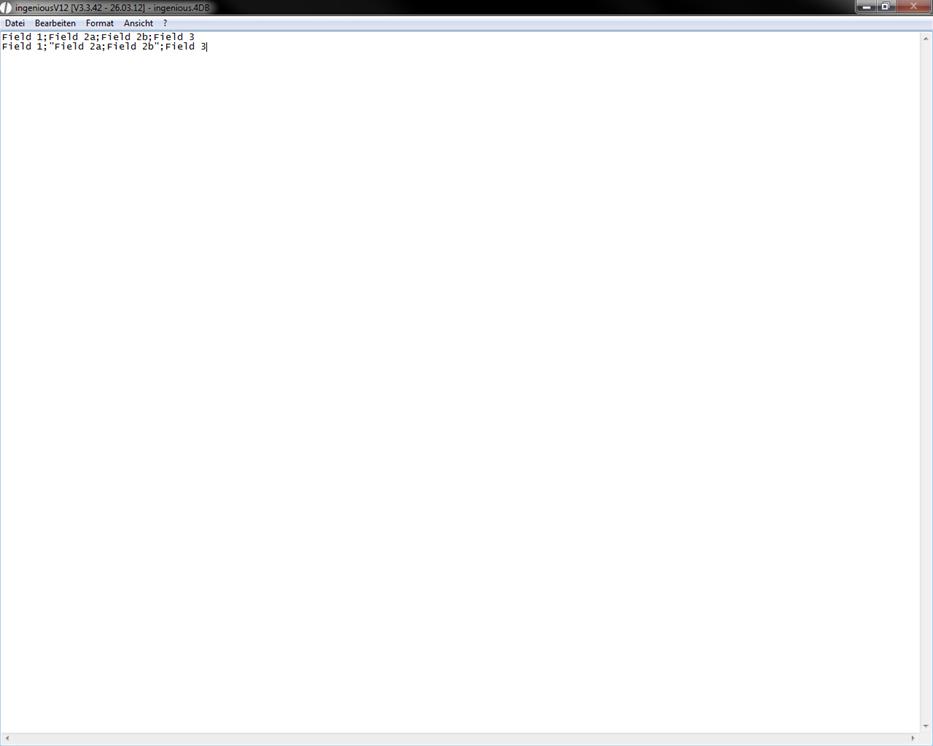
2. Open the data import and select the category “File”. In the area “Separators” choose the option “Symbol”, in the Field “End of field” the option “semicolon” and the quotes as optional character recognition. The semicolon is used as a indicator, that indicates the end of a data field.
3. Switch to the category “Fields” and click the button . Choose the created text field and open it.
4. Click on  to view the data field of the second line. Here only three field are created, because the semicolon was recognized as a text in between the two quotes.